Auth and Access
Login procedure
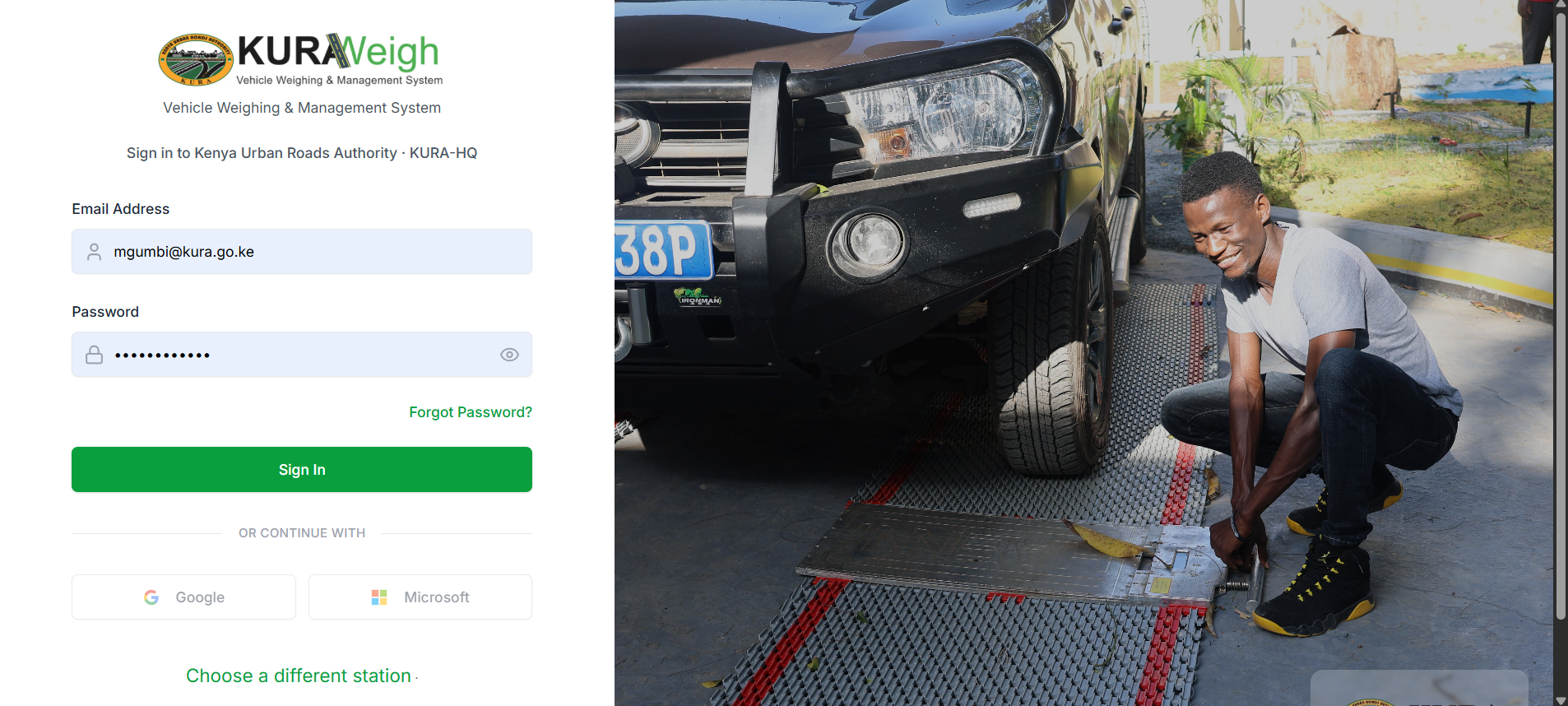
- Open the official frontend URL in your browser.
- Confirm that the page title and branding match the expected environment.
- Enter your assigned email and password.
- Click
Login. - Wait for redirect to the dashboard.
- Verify your name, role, and station context.
Mandatory post-login checks
- Confirm the correct organization context (
orgSlug) in the URL. - Confirm station context is set to your active duty station.
- Confirm visible modules match your role scope:
- Weighing
- Case Register / Case Management
- Prosecution
- Financial (Invoices/Receipts)
- Reporting
- Open one module and verify
Createactions are available where expected.
Role and permission behavior
- Navigation items are shown or hidden based on JWT claims and backend RBAC policies.
- Action buttons (create, update, approve, close) are disabled/hidden for insufficient permissions.
- Cross-tenant data access is blocked by organization/station scoping.
- Platform-level setup pages are restricted to authorized admin roles.
Password and session handling
- Use strong passwords and avoid shared credentials.
- If login fails repeatedly, stop retrying and request support to avoid lockout.
- Always log out at end of shift on shared workstations.
- Re-login when role/station assignments were recently changed.
API access
Integrators obtain a token against the same auth/login endpoint the
frontend uses. Try it live in
Swagger (test),
then send Authorization: Bearer <token> on protected endpoints. See
Swagger UI for the full endpoint explorer.
Common access issues and immediate actions
| Issue | Likely cause | Immediate action |
|---|---|---|
| Invalid credentials | Wrong email/password | Re-enter carefully, then request reset if needed |
| Account locked | Too many failed attempts | Contact admin to unlock account |
| Missing modules | Wrong role assignment | Ask admin to verify RBAC role mapping |
| Action buttons missing | Permission gap | Confirm exact permission required with admin |